
Git Branches allow us to work on new features, fix bugs, or experiment without touching the main code as we learned in the post Understanding Git Branches.
But once the work is done, how do we bring everything back together? That’s where merging comes in. We had also seen merging in the post Understanding Git Branches.
This post explains merging in the simplest possible way.
🌿 Recap: What is a Branch in Git?
Think of our project as a tree.
- The main branch (also called
mainormaster) is the trunk. - Each new branch you create is like a smaller branch growing from the trunk.
We can work on our branch without affecting the tree.
When we’re ready, we can merge our branch back into the main branch.
🔗 What is Merging?
Merging means taking the changes from one branch and combining them into another.
Most commonly:
feature-branch ---> main
Git automatically combines changes and updates the target branch.
🎯 When Do You Use Merging?
Use merging when:
- We’ve finished working on a feature
- We’ve fixed a bug
- We want to bring updates from
maininto your working branch - We want everyone’s code to stay in sync
📌 Prerequisite
For this post, we assume you already have following from the post Understanding Git Branches and created:
- A
mainbranch - A
feature-loginbranch (created in Blog 1)
We will now use these two local branches to demonstrate how merging works in real life.
🛠️ Let’s Merge: A Simple Local Example
We will:
- Create a file in the
feature-loginbranch - Commit it
- Switch to
main - Confirm the file does not exist in
main - Merge the feature branch into
main
1️⃣ Step 1: Switch to Your Feature Branch
Use git switch, the modern and simpler command:
git switch feature-login2️⃣ Step 2: Add a New File
Let’s create a simple text file in the feature-login branch.
✔️ If you are using Bash (Linux, macOS, Git Bash on Windows):
echo "Hello from feature-login branch!" > feature.txt✔️ If you are using PowerShell (Windows Terminal / VS Code Terminal):
"Hello from feature-login branch!" | Out-File -FilePath feature.txt✔️ Explanation
Both commands do the same thing:
- They create a file called
feature.txt - They write this text inside it:
Hello from feature-local branch!
After running this step, you will see a new file appear in your project folder.
✔️ Check status (highly recommended):
git statusYou should see something like:
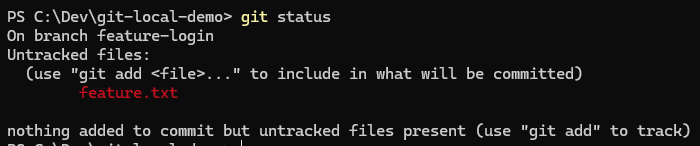
This confirms:
- Git has detected a new file
- It is untracked (not yet staged)
- You are ready for the next step (staging and committing)
3️⃣ Step 3: Stage and Commit the File
TNow that the file exists, let’s save it properly in Git.
✔️ Stage the file (tell Git to track it):
git add feature.txt✔️ Commit the file (save the change permanently in this branch):
git commit -m "Added feature.txt in feature-local branch"You should see something like:
[feature-local abc1234] Added feature.txt in feature-local branch
 1 file changed, 1 insertion(+)
 create mode 100644 feature.txt
Before switching to another branch, let’s double-check that everything is correct.
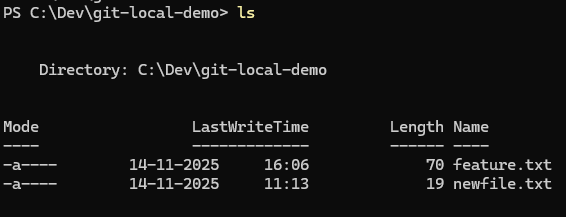
✔️ Check that the file exists in the folder:
lsYou should see:
✔️ Check that the commit is recorded in the branch history:
git log --onelineYou should see your latest commit at the top:

✔️ What this verification ensures
- The file is physically present in your working directory
- The file is part of a commit
- The commit is inside the
feature-localbranch, notmain
This gives beginners full confidence before moving on to merging.
4️⃣ Step 4: Switch Back to main
Move to the branch you want to merge into:
git switch main5️⃣ Step 5: Confirm the File Is NOT in main
Before merging, check the list of files:
lsYou should NOT see feature.txt:
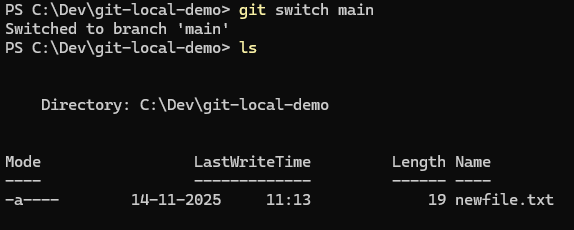
This confirms your main branch doesn’t yet have the changes.
(If you do see the file, something is wrong — maybe you committed in the wrong branch.)
6️⃣ Step 6: Merge feature-login into main
Now merge:
git merge feature-loginIf everything is simple, you will see something like:
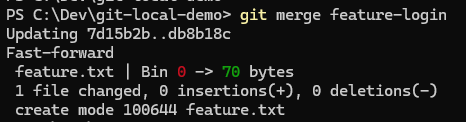
This means the merge succeeded.
7️⃣ Step 7: Verify the Merge
List the files again:
lsNow you should see feature.txt
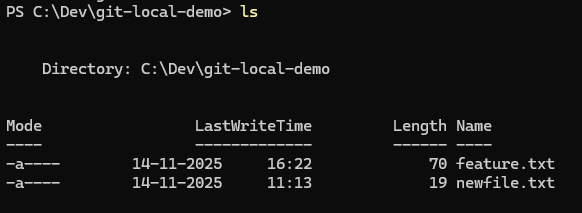
Check the commit history:
git log --oneline
The commit from feature-login will now appear in main.
🧹 Step 8 (Optional): Delete the Feature Branch
Once merged, you can remove the feature branch:
git branch -d feature-local
Your changes remain safely in main.
🎉 Final Summary
The merging process is:
- Work in the feature branch
- Commit changes
- Switch to
main - Confirm
maindoes NOT contain the new file - Merge the feature branch
- Verify the merge
- (Optional) Delete the feature branch
Everything happens locally, without GitHub or remote servers.
🎁 Bonus: What If There Is a Merge Conflict?
(We will explore this in detail in a future blog post.)
Sometimes, Git cannot automatically combine changes — especially when both branches modify the same line in a file.
When this happens, Git creates a merge conflict.
A conflict looks like this inside a file:
<<<<<<< HEAD
this is from main
=======
this is from your feature branch
>>>>>>> feature-login
To resolve it, you must:
- Manually edit the file
- Choose which version to keep
- Remove the conflict markers
- Save, stage, and commit your changes
git add filename
git commit
Don’t worry if this feels confusing — this is just a preview.
We will go step by step through merge conflicts, why they happen, and how to fix them in an upcoming blog post.